VS Code extension
The extension puts a Quota button in your status bar and opens a panel with every quota you’ve connected. You can also pin specific quotas next to the button so they’re always visible while you code.
It works in VS Code and in editors that use Open VSX, like Antigravity and Kiro. It keeps its own accounts, separate from the desktop app.
Install
Section titled “Install”Search for Quota: AI Usage Tracker in the Extensions view, or open it on the Visual Studio Marketplace.
In Antigravity, Kiro or another Open VSX editor, search for Quota: AI Usage Tracker in the Extensions view, or open it on Open VSX.
- Download
quota-ai-usage-tracker-1.4.0.vsix. - Press F1 and run Extensions: Install from VSIX…
- Pick the file you downloaded.
Connect a provider
Section titled “Connect a provider”Open the Command Palette and run the connect command for the provider you want:
Quota: Connect GitHub CopilotQuota: Connect CodexQuota: Connect Claude CodeQuota: Connect AntigravityQuota: Connect KiroQuota: Connect GrokQuota: Connect OpenCode Go
Each one follows that provider’s own sign-in flow. For Grok you can skip the browser and run Quota: Import Local Grok CLI Account, which reads ~/.grok/auth.json. OpenCode Go asks for your Go API key from the OpenCode console instead.
If a Codex, Claude Code or Grok login expires, the panel keeps the account and shows a Reauthenticate action.
The panel
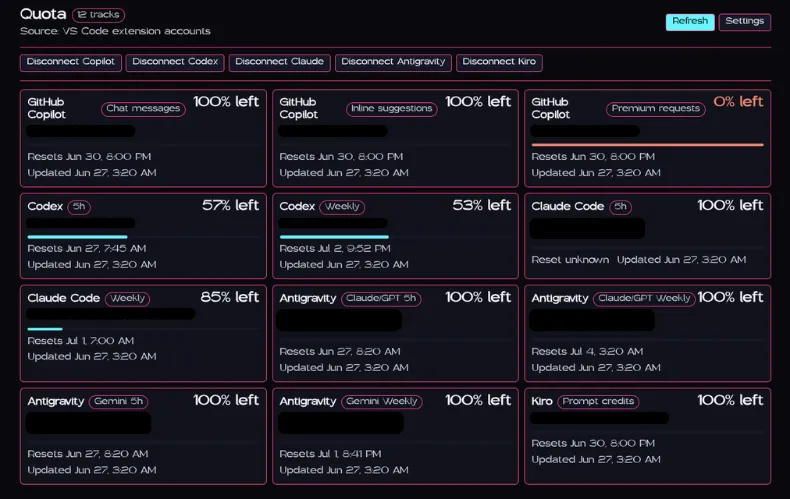
Section titled “The panel”Click the Quota button or run Quota: Open Quota Panel. Each card shows the provider and quota name, the account, the percentage, when it resets and when it last updated. The layout goes from one column to several as you make the panel wider.
Status bar tracks
Section titled “Status bar tracks”
Add track IDs to quota.statusBar.items to pin them next to the button. Each one gets a small colored dot:
- 🟢 more than 30% left
- 🟡 11 to 30% left
- 🔴 10% or less left
- ⚪ no percentage data
| Provider | Track IDs |
|---|---|
| GitHub Copilot | githubCopilot.premium, githubCopilot.chat, githubCopilot.inline |
| Codex | codex.primary (5 hour), codex.weekly |
| Claude Code | claude.fiveHour, claude.weekly, claude.weeklySonnet, claude.extraUsage |
| Antigravity | antigravity.gemini, antigravity.geminiWeekly, antigravity.claude, antigravity.claudeWeekly |
| Kiro | kiro.promptCredits |
| Grok | grok.credits, grok.monthlySpend, grok.onDemand |
| OpenCode Go | opencodeGo.fiveHour, opencodeGo.weekly, opencodeGo.monthly |
Settings
Section titled “Settings”Run Quota: Open Settings, or add these to your settings.json. These are the defaults, apart from the example track:
{ "quota.refresh.intervalSeconds": 120, "quota.providers.enabled": [ "githubCopilot", "codex", "claude", "antigravity", "kiro", "grok", "opencodeGo" ], "quota.statusBar.enabled": true, "quota.statusBar.items": ["codex.primary"], "quota.statusBar.display": "percentRemaining", "quota.statusBar.maxItems": 3}Set quota.statusBar.display to percentUsed if you’d rather see what you’ve used. The panel bars follow the same setting.
Commands
Section titled “Commands”Every provider has a matching Connect, Refresh and Disconnect command, like Quota: Refresh Codex or Quota: Disconnect Kiro. The general ones are:
| Command | What it does |
|---|---|
Quota: Open Quota Panel |
Opens the panel |
Quota: Refresh Summary |
Refreshes every connected provider |
Quota: Open Settings |
Opens Quota’s settings |
Quota: Import Local Grok CLI Account |
Imports Grok accounts from ~/.grok/auth.json |
Disconnecting deletes the extension’s stored credentials and cached usage for that provider.